APL |
Configuring Minimum and Rounding Trades Tables |
Configuring Minimum and Rounding Trades Tables
Overview: Minimum and Rounding tables
The APL Minimum and Rounding Tables feature is an administrative utility that maintains trade minimum and rounding parameters. By default, there is a minimum and rounding table at the client level, but users can set additional tables at other levels to override the default values. Trading tools apply effective minimum and rounding values based on table hierarchy (account, universe, groups of accounts and client/default).
This guide explains how to access and set minimum and rounding values in these tables. At the end of this document, there is a list of trading solutions and tools that use these tables.
Accessing the Minimum and Rounding tables
To access the minimum and rounding tables:
From Expert mode: At the WHICH FUNCTION? prompt, enter MINTRADESTABLE.
From a Window Universe: Select MINIMUM AND ROUNDING SETTINGS on the Window menu.
From this menu, users can set minimum and rounding tables values for:
a client (default)
a group of accounts
a single account
Setting values: Default table
The minimum and rounding values specified in the default table at the directory level determine the minimum and rounding values when no higher-level table (account, universe, groups of accounts) has been defined. If these minimum and rounding requirements are met, the system carries out trades in order to rebalance and adjust accounts.
To display the default table for the directory, select Edit Default Minimum and Rounding settings and press Enter. The DEFAULT MINIMUM AND ROUNDING SETTINGS TABLE opens to the Rounding options.
To set the rounding and minimum options, enter the value at the blinking cursor.
To cycle through a list of proposed values, press the F1 key.
To move to the next column, use the TAB key, or arrow keys on the numeric keypad.
To carry out actions on the table, refer to the list of commands at the bottom of the window.
To switch between rounding and minimum trading options in the table, press F9, or SHIFT+F9.
Setting values: Account group table
In the Select option main menu, select Assign Minimum and Rounding settings to account groups and press Enter. The Select menu opens.
From this menu, users can create, edit and delete an account group.
In the Select menu, select Edit Existing Group and press Enter. The window to select an account group opens.
Select the account group and press Enter. The minimum and rounding table for the selected account group opens.
Enter the rounding and minimum values in the same manner as the client/default table.
Setting Values: Account Table
In the Select option main menu, select Edit Account Minimum and Rounding Settings and press Enter. The window to select one account opens.
To display a list of accounts, press F7. Select the account and press Enter.
The ACCOUNT MINIMUM AND ROUNDING SETTINGS TABLE opens to the Rounding options.
Enter the rounding and minimum values in the same manner as the client/default table.
Accessing and Setting Values: Universe Table
Accessing the universe table depends on universe configuration at the client site.
If one universe is available, the universe opens
If more than one universe is available, the window to select a universe opens
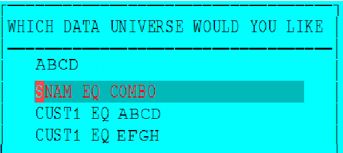
Select the universe and press Enter. The menu opens.
In the Select option menu, select Edit Universe Minimum and Rounding Settings and press Enter. The MINIMUM AND ROUNDING SETTINGS TABLE opens to the Rounding options for the selected universe.
Enter the rounding and minimum values in the same manner as the client/default table.
Displaying Effective Minimum Values Report
The Effective Minimum Values report shows minimum and rounding values effective for each selected account.
To display a report showing effective round and minimum parameters for selected accounts, select the Effective Minimum Values Report on the main menu and press Enter.
Trading Solutions and Tools
The following trading solutions and tools use the minimum and rounding tables:
| Trading Solution | Tools |
|---|---|
Financial Advisor Workbench |
|
| Unified Managed Account (Submanager) |
|